
Documentation
Vox Shine
Install and activate Vox Shine, then shape the tone, tuning and finish of a vocal in your mix.
Quick start
- Get Vox Shine from the product page. If you already own it, open your dashboard and download the Windows installer.
- Close your DAW, extract the ZIP and run Vox Shine Setup.exe. Keep the default VST3 folder for FL Studio.
- Open your DAW and add Vox Shine as an effect on a vocal track. Click Activate and sign in with the account that owns the licence.
- Start with B · Vocal Glow on a dry lead vocal. Set the song’s key and scale from the Tune menu, then adjust Melody and Tune while listening in the mix.
Download and install
Vox Shine 2.0.0 is a Windows 64-bit VST3 effect. Use a 64-bit DAW that supports VST3, or select Include the standalone application in the installer to use Vox Shine outside a DAW.
- Sign in to XRL Records, open Vox Shine in your dashboard and download the ZIP.
- Right-click the ZIP in File Explorer and choose Extract All. Run Vox Shine Setup.exe from the extracted folder.
- Keep the default VST3 location,
C:\Program Files\Common Files\VST3, or choose a folder your DAW supports for VST3. Finish the installation before reopening your DAW.
Find Vox Shine in FL Studio
Open Options → File settings → Manage plugins. Enable Verify plugins and select Find installed plugins. Open the Mixer, select the insert your vocal is routed to, and choose Vox Shine in an effect slot.
Licence and activation
If you claimed a free licence
If you checked out as a guest, open Confirm your free licence request from your inbox. On the review page, click Confirm and get licences within 24 hours. Once you confirm, first-time customers get a separate account setup email to create a password. If you already have an account, sign in with the email you used to claim the licence.
Activate in your browser
- Open Vox Shine and click Activate → Sign in with browser.
- Sign in to the XRL Records customer account that owns Vox Shine. Match the code shown in the browser to the one in your plugin, then choose Activate on this computer.
- Return to your DAW. Keep Vox Shine open until activation finishes.
Use an activation code
In your dashboard, open the Vox Shine licence and copy its activation code if it’s available. You can also generate it on the Activation page using your registration number and licence key. Back in Vox Shine, choose Use activation code, enter your account email and the code, and click Activate licence.
Controls and presets
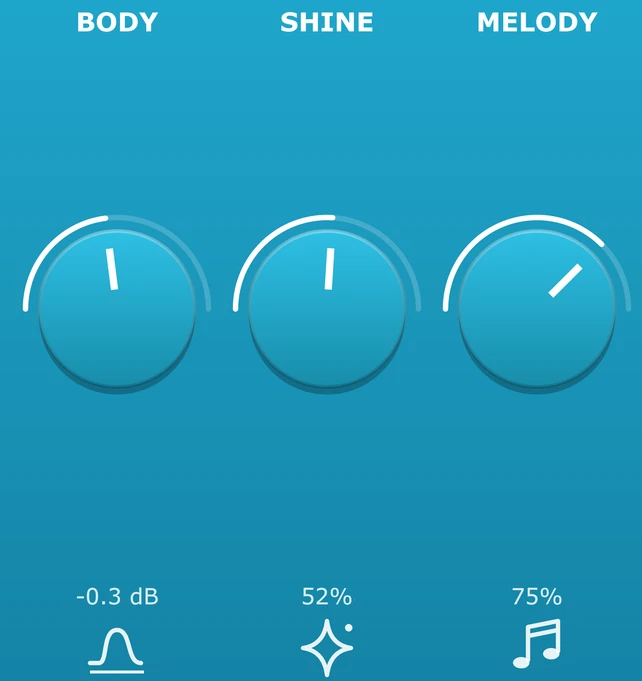
- Body
- Adds or reduces low-mid weight. Turn it down if the vocal sounds muddy.
- Shine
- Levels dynamics and adds presence. Bring it up until quiet words sit clearly in the mix.
- Melody
- Sets the amount of pitch correction. At 0%, the lead stays untuned.
- Tune
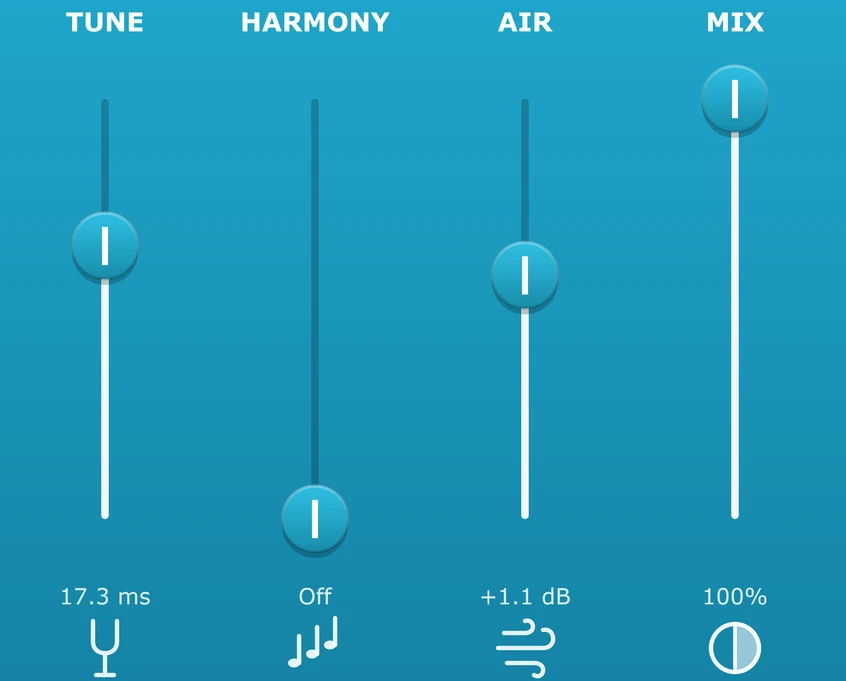
- Sets how quickly pitch correction follows the target note. Move up for faster correction, from 120 ms to 3 ms.
- Harmony
- Blends in a shifted voice. The preset and selected scale affect its interval. The slider sets its level. Off removes the extra voice.
- Air
- Adds or reduces top-end brightness. Ease it back if breaths or S sounds stand out.
- Mix
- Blends the original and processed vocal. Start at 100% when tuning to avoid hearing both pitches at once.
- Power
- Bypasses the processing so you can compare with the original vocal.
Choose the key and scale
Right-click Tune, choose the song’s key and scale, and click Done. Leave the scale on Chromatic if you’re unsure. The note and frequency shown in the header describe the detected vocal pitch.
Factory presets
- A · Smooth Lift
- Gentle processing for a natural starting point.
- B · Vocal Glow
- The default starting point for an upfront lead vocal.
- C · Body Punch
- Adds weight when the vocal sounds thin.
- D · Air Max
- Adds brightness with a faster tuning response.
Presets recall the tone, tuning, harmony and Finish controls. They keep your selected key, scale, Mix and Power settings.
Finish panel
Click Finish below Power to open three extra controls.
- Detail
- Adds harmonic sheen for more definition.
- Humanize
- Keeps more of the singer’s vibrato and pitch movement while correcting the note centre.
- Smooth
- Softens harsh upper mids when they stand out.
Double-click a control to reset it. Hold Shift before dragging for finer adjustments.
Updates and uninstall
In your dashboard, open the Vox Shine licence. Check the latest version and any update notes, then choose Download Latest Version. Close your DAW before running the new installer and rescan if your DAW still shows the old version.
To uninstall, open Settings → Apps in Windows, find Vox Shine in the installed apps list and choose Uninstall.
Troubleshooting
- The ZIP won’t download
- Sign in with the account that owns the licence and start a fresh download from the dashboard. Delete any incomplete download before extracting the new ZIP.
- The email hasn’t arrived
- Check the email address, then look in Spam or Promotions. If you’re setting up a new account after a free claim, confirm the licence request first.
- Vox Shine doesn’t appear in my DAW
- Check the VST3 installation folder and rescan with plugin verification enabled. Look for Vox Shine under effects in your DAW.
- The activation request expired
- Return to the plugin and start browser sign-in again. If sign-in opens another account, switch to the account that owns the licence before approving.
- The vocal sounds doubled or snaps to the wrong note
- Check the key and scale, set Mix to 100%, turn Harmony off and use a dry, isolated vocal. Try less Melody or a slower Tune response for gentler correction.
- Monitoring feels delayed
- Use Vox Shine while mixing. Take it off the live monitoring chain while recording if the delay makes tracking uncomfortable.
If you still need help, contact XRL Records support with your Vox Shine version, Windows version, DAW and the exact error message.